Divide one screen into zones
Use a large feature zone for your main message, a side zone for extra information, and an announcement zone along the bottom. Each industry can create its own layout.
Already have a smart TV? With a compatible browser or signage player, you can turn that screen into a digital menu board, welcome display, promotion screen, or announcement center. Create custom zones and update content online with Wilson Signage.
You may not need to purchase a dedicated digital signage display. Many compatible smart TVs can show Wilson Signage through their built-in web browser; other TVs can use a small external Android or kiosk player.
Compatibility depends on your TV's browser, supported video formats, and full-screen capabilities. For unattended or 24/7 playback, a dedicated signage player may be more reliable.
Log In or Create Account ↗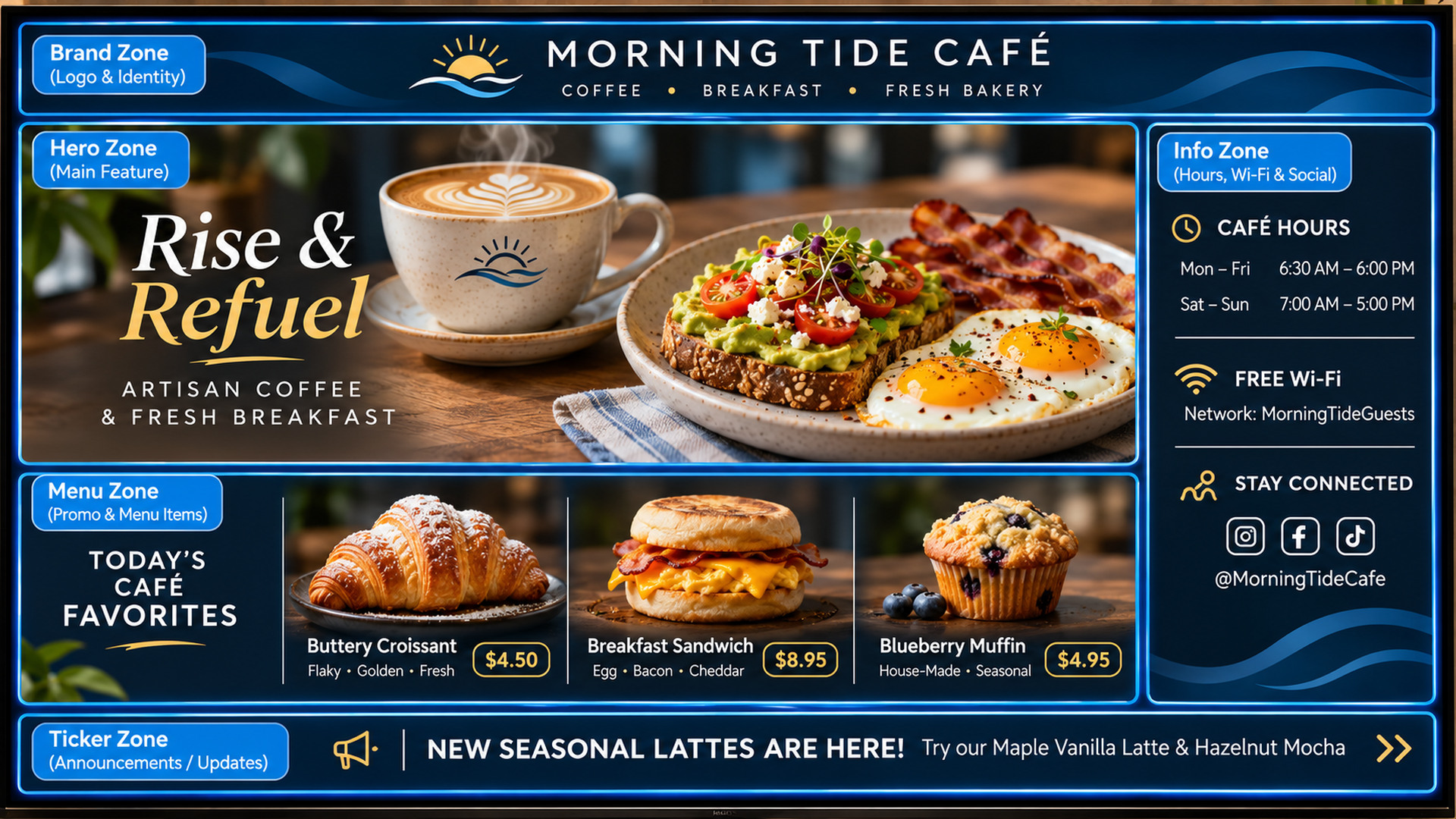
From a full-service restaurant to a sports bar, café, or quick-service counter, custom zones let different messages share one display. Every design below is a different example—not the same sign repeated. Select an example to explore its layout.
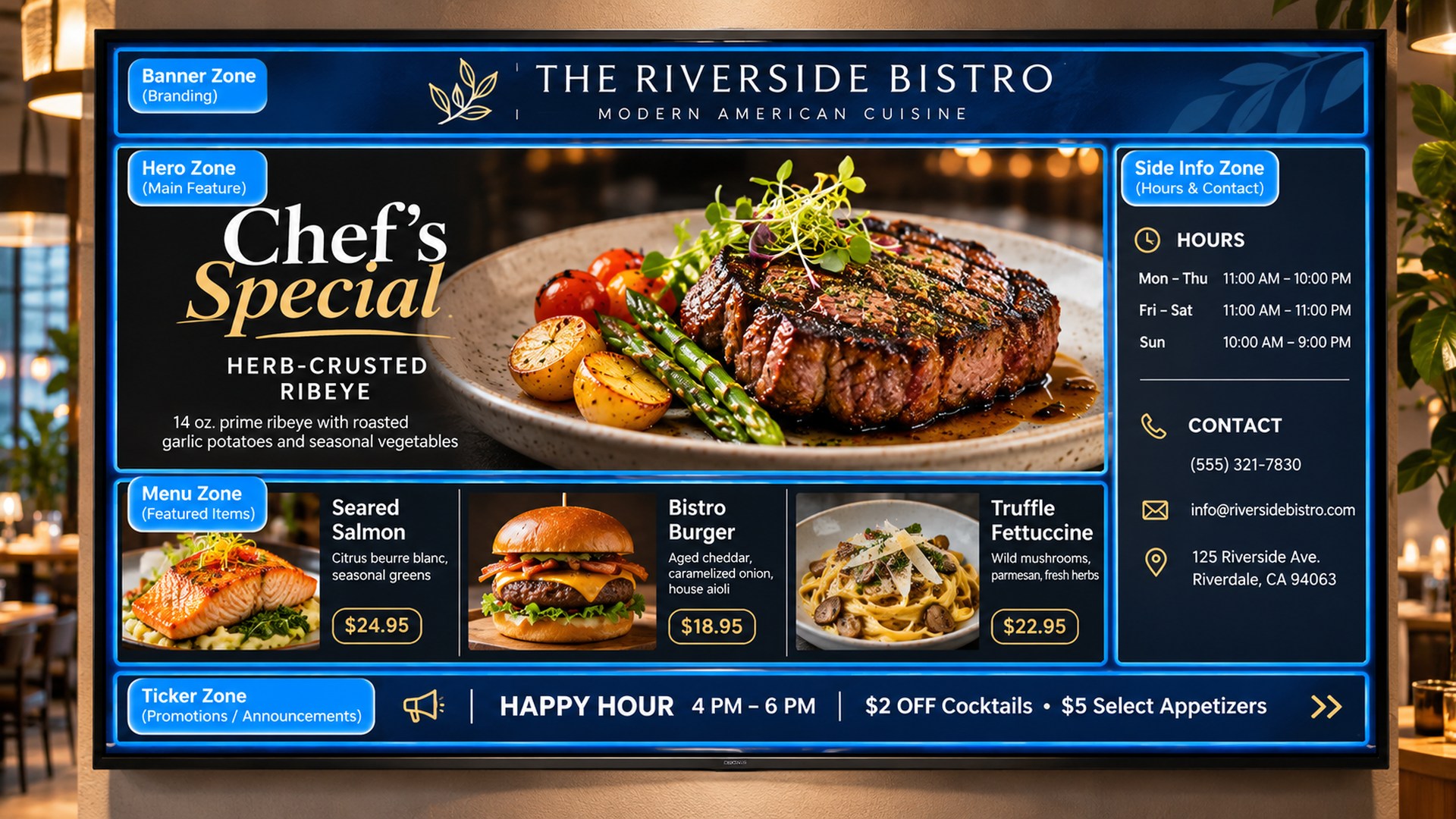
A restaurant welcome, featured dish, priced menu selections, business details and a promotion strip—each in its own zone.
Sample content and sample prices are for illustration. Graphics demonstrate possible zone layouts; they are not a live feed from a display.
Restaurants are only the beginning. See how churches, stores, offices, schools and event venues can divide a single 16:9 display into useful zones. Each area can have its own images, videos or messages.
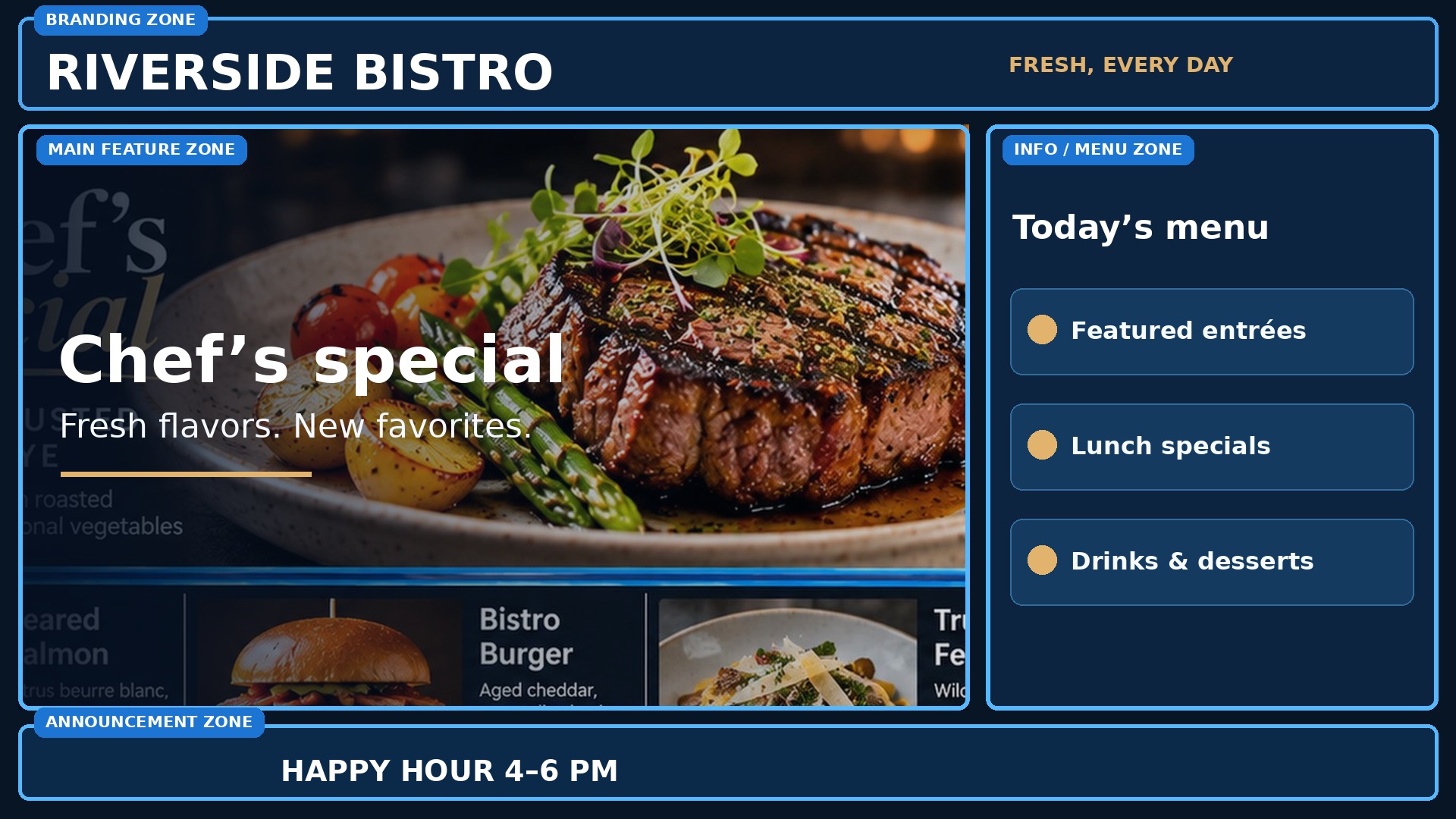
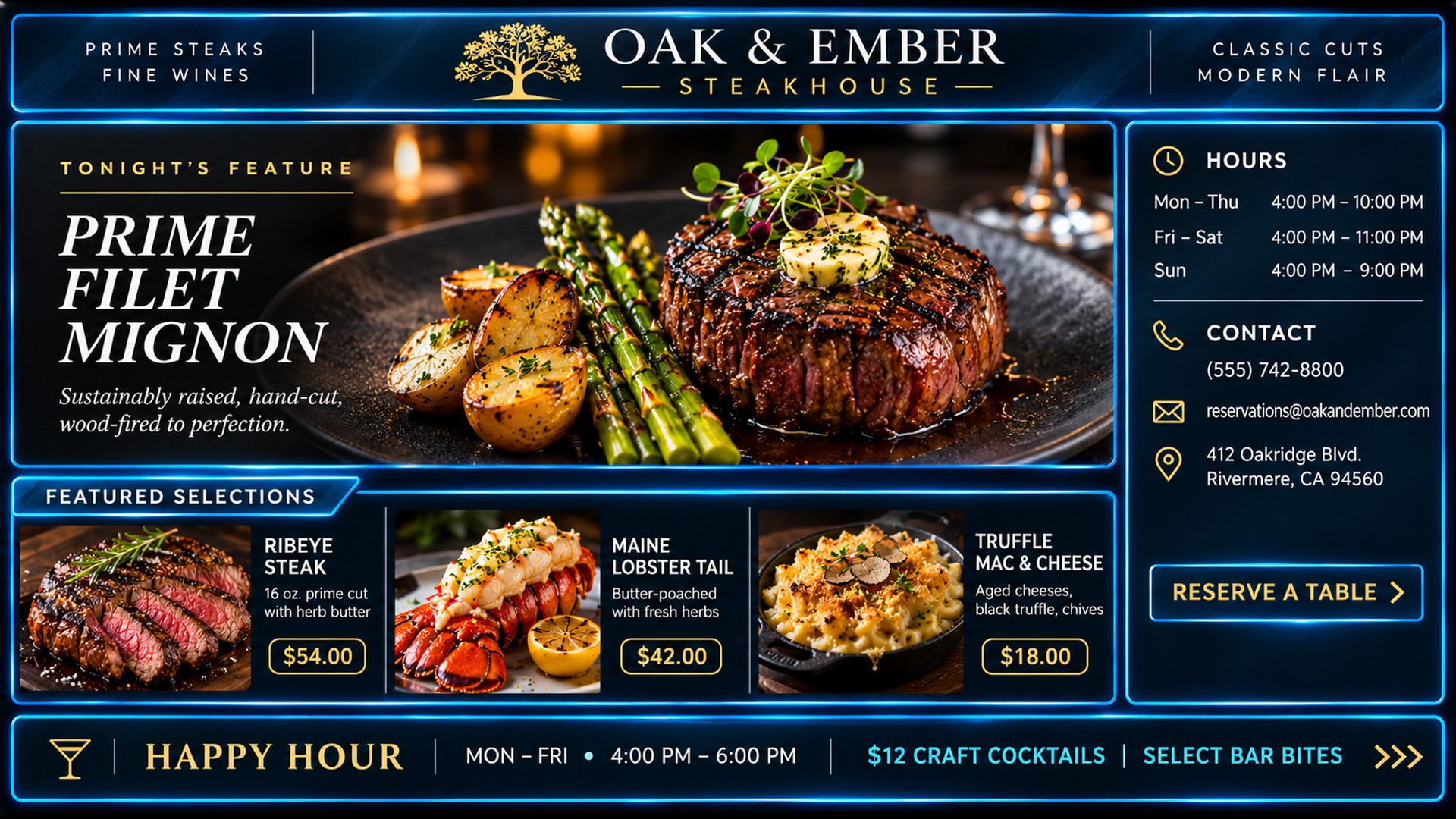
Reserve a big area for an eye-catching meal, a side area for pricing or menu items, and a footer for timely offers.
Sample screens illustrate possible layouts, not live or automatically populated information. You decide the name, placement and content of each zone.
Instead of filling the entire screen with one image, create named areas that each display their own content. Resize and position your zones around what matters to your organization, whether that is a menu, a welcome message, a directory or an event schedule.
Use a large feature zone for your main message, a side zone for extra information, and an announcement zone along the bottom. Each industry can create its own layout.
Arrange zones by width, height, and location. Use presets or define a custom layout with exact pixel dimensions for your sign.
Name zones “Lunch Specials,” “Service Times,” “Directory,” “Upcoming Events,” or “Promotions.” Select the destination zone whenever you add content.
Each zone can have its own images, text slides, or videos. Update one area without rebuilding the rest of your screen.
Whether you’re building a 1920 × 1080 menu board or using an ultra-wide signage screen, choose the content canvas size that fits your display.
Manage a church lobby sign, restaurant menu board, retail promotion screen or office directory—from the same browser-based platform.
Add images and videos and assign them to the zone where they belong.
Run different content sequences in different parts of the same display.
Set start and end dates for seasonal graphics and limited-time offers.
Choose how often each sign checks for updates after publishing.
Optionally show scrolling information across the bottom of a screen.
Compatible players can retain previously downloaded content through temporary connection outages, subject to device storage.
Keep image changes consistent with one transition and speed per sign.
Manage separate screen resolutions, content, and player links for each sign.
Customers use their email to sign in and manage their organization's own signs.
Register your account, add a sign, choose its resolution, and name your custom zones.
Upload media and assign it to any named zone—such as Menus, Services, Events, Welcome, or Promotions.
Publish from your browser. Your connected player checks for new content at its configured interval.
Yes. Custom layouts are designed to let you choose each zone’s size and location. You can devote most of a screen to your featured item and reserve smaller areas for pricing, menus, or promotions.
Yes. You assign each slide to a specific zone so that different zones can play their own content sequences.
Zone names, layout, and dimensions can be edited. Save and publish the layout for the player to receive updates. If you remove a zone, review its existing content assignments first.
Often, yes. If the smart TV has a compatible browser or can connect to an external signage player, you can use Wilson Signage to display images, videos, and custom zones. Browser support, full-screen startup, and video compatibility vary by TV model.
No dedicated signage screen is necessarily required. Compatible smart TVs, browser-equipped displays, and supported Android signage devices can be used. For unattended 24/7 operation, a kiosk browser or dedicated player may offer better reliability.
Each display can have its own content, dimensions, and access link. Manage different signs and locations under one customer account.
Show the right content, in the right places, with a layout designed around your business or organization. Get started with customizable digital signage.
Log In or Create Account ↗